
263 Enterprise Mail: MX, SPF, DKIM & DMARC Setup
Configure 263 Enterprise Mail on a custom domain: mxw.263.net at priority 5, mx.263.net at 10, the spf.263.net include, DKIM generated in the admin console, and DMARC reporting.
Aliyun Mail & DirectMail: DKIM, SPF & DMARC Setup
Step-by-step Aliyun DirectMail sender domain verification: the six DNS records, the SPF include values, region-based DKIM selectors and DMARC publishing.
Alibaba Mail (Alimail) SPF, DKIM & DMARC Setup Guide
Configure Alibaba Mail / Aliyun Enterprise Mail on your own domain: mx1-mx3.qiye.aliyun.com, the spf.qiye.aliyun.com include, default._domainkey DKIM and a DMARC record.
MailerLite Domain Authentication: DKIM, SPF & DMARC
MailerLite requires domain authentication for any custom sending address. Since the February 2024 Gmail and Yahoo rules, unauthenticated senders are filtered aggressively, and MailerLite has made authentication mandatory outside the trial period — a new account can send from a custom domain for 14 days without it, and not after.
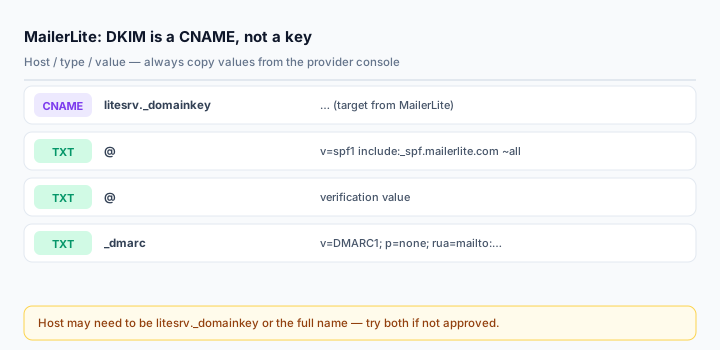
The setup is three records, and the shape is unusual in one way: DKIM is a CNAME, not a TXT key. Every guide that tells you to paste a v=DKIM1; p=... value into a TXT record is describing a different product.
What you need
- MailerLite account access to Account settings > Domains.
- DNS access for the domain behind your sending address. MailerLite does not host DNS.
- An existing SPF record identified before you start, if you send from Google Workspace, Microsoft 365 or anything else.
Step 1: Add the sending domain
- Account settings > Domains.
- Under Sending domains, click Add sending domain.
- Enter an email address on the domain you want to authenticate. This address becomes a sender in your campaigns, so use a real one you monitor.
- Click Authenticate.
If your DNS is on GoDaddy, IONOS or Cloudflare, MailerLite can write the records through the provider's API — you authorise once and it configures them. If you use social login with your DNS provider, that path is unavailable and you must do it manually. For everyone else, choose Set up manually.
Step 2: The three records
DKIM          CNAME   litesrv._domainkey        <target shown in MailerLite>
SPF           TXT     @                         v=spf1 include:_spf.mailerlite.com ~all
Verification  TXT     @                         <verification value>
All three must match exactly what the panel shows — the values are case-sensitive and cannot be edited inside MailerLite.
DKIM must be a CNAME. The host is litesrv._domainkey, and some DNS panels want it with your domain appended while others append it themselves. MailerLite's own troubleshooting note says to try both forms if the record is not approved. A CNAME cannot coexist with another record at the same host, so delete a stale TXT there first.
SPF. If an SPF record already exists at @, do not add a second one. MailerLite's automatic setup merges the include into the existing record; doing it by hand means editing the existing TXT:
v=spf1 include:_spf.google.com include:_spf.mailerlite.com ~allTwo v=spf1 records at the same host make SPF fail entirely, and MailerLite will report "more than one SPF record found" without telling you which one to remove.
Verification TXT. This one proves ownership and is specific to your account. It can be removed after authentication; the SPF and DKIM records cannot.
Step 3: Check, then wait
Back in Domains, click Authenticate again and then Check DNS records. Approval is usually immediate, but the panel may report a record as unapproved even when it is correct — the check is cached and re-runs periodically. Give it up to 24 hours before rebuilding anything.
If a record is genuinely wrong, the console tells you which one. The two real causes are a wrong host form on the DKIM CNAME and a duplicated SPF.
Step 4: DMARC
MailerLite does not create a DMARC record for you, and Google's rules require one for bulk sending:
_dmarc.yourdomain.com TXT v=DMARC1; p=none; rua=mailto:dmarc@yourdomain.com; fo=1Run p=none for two weeks, read reports with the DMARC Report Analyzer, then tighten to quarantine and reject. If your domain also sends transactional mail through another ESP, its include belongs in the same SPF record and its DKIM selector gets its own record — MailerLite covers only MailerLite.
Step 5: Verify with a real campaign
Send a test campaign to a Gmail address and open Show original:
spf=pass (mailerlite designates <IP> as permitted)
dkim=pass header.d=yourdomain.com header.s=litesrv
dmarc=pass (p=NONE) header.from=yourdomain.com
header.s=litesrv confirms the CNAME delegation is working. If DKIM passes with d=mailerlite.com instead of your domain, the CNAME is missing or resolving to the wrong target.
Check the published side with the DKIM Checker (selector litesrv) and the SPF Checker.
Common mistakes
- Creating a TXT record for DKIM. It must be a CNAME.
- Host field with the domain included on panels that append it automatically.
- Two SPF records after adding MailerLite to an existing setup.
- Deleting the SPF record along with the verification record.
- Sending from a free mailbox. A
@gmail.comsender is not authenticated by your domain's records and will be filtered.
Frequently asked questions
Why is my DKIM not approved when the record looks right?
Check the host form first — litesrv._domainkey versus litesrv._domainkey.yourdomain.com, depending on your panel. Then confirm the record type is CNAME and not TXT. Then wait; the checker caches results.
Can I authenticate a subdomain for newsletters?
Yes, and it is a good idea. Put the newsletter on news.yourdomain.com, authenticate that host separately, and keep the apex for business correspondence. MailerLite needs the records on whichever domain the sending address uses.
Is domain alignment the same as authentication?
No. Authentication proves the message came from an authorised server; alignment requires the authenticated domain to match the visible From domain. MailerLite offers an alignment step for custom domains — use it if you send from a subdomain but display the parent brand.
Related Tools
Need Help?
Our tools are designed to be intuitive, but if you need assistance, we're here to help.
About Our Tools
Professional-grade email and DNS diagnostic tools trusted by IT professionals worldwide.